Documentation index: llms.txt. This page is also available as markdown: append .md to this URL or send Accept: text/markdown.
History
The History tab records metadata changes on Catalog assets so you can see who updated what and when. Use it for governance reviews, to confirm bulk edits from the Metadata Editor, and to compare the full timeline on an asset with notifications you receive.
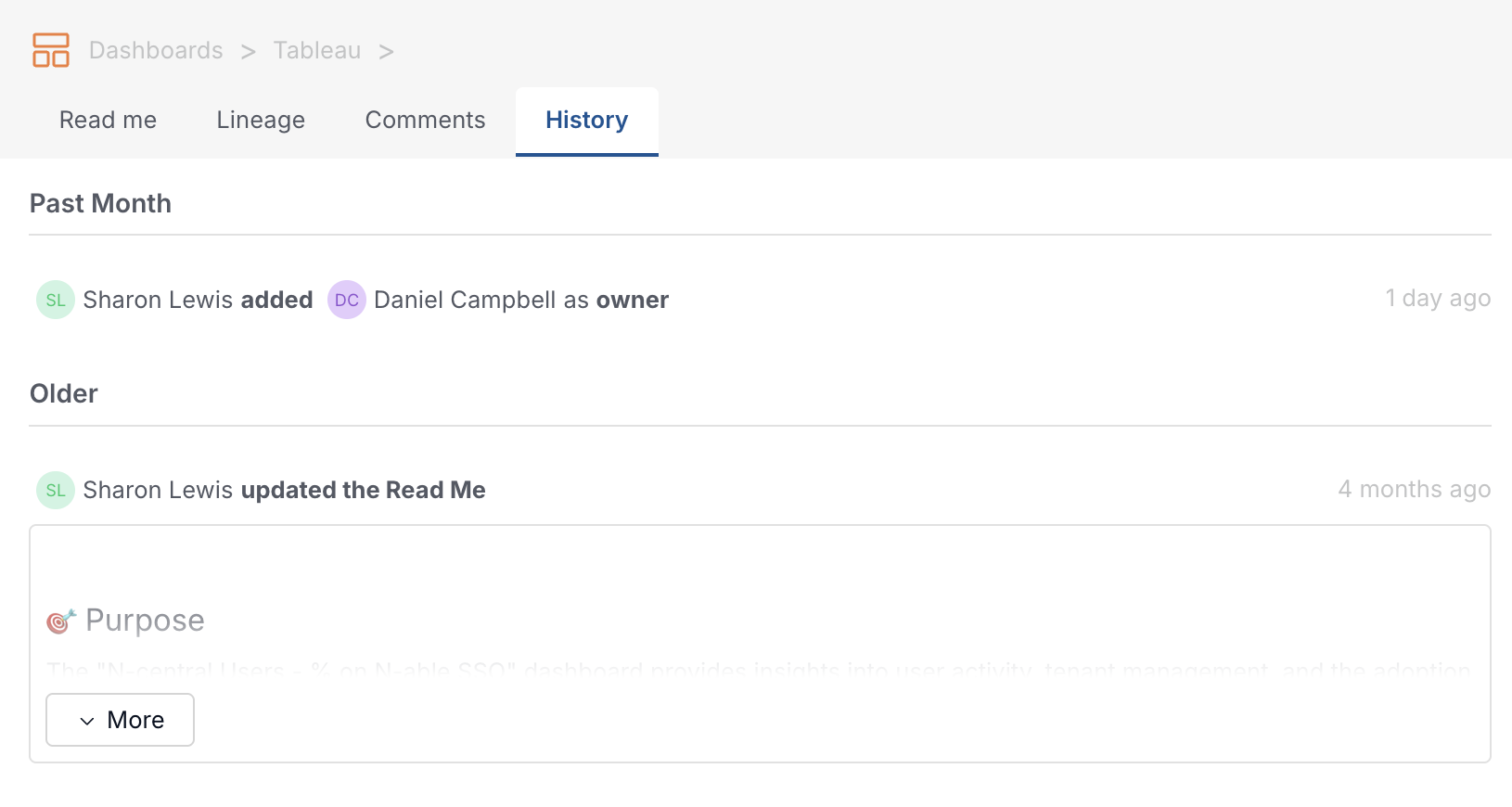
Where You Find History
Open any table, dashboard, or knowledge page and select the History tab. The same tab appears on workbook and view pages in supported BI integrations. Column-level metadata changes that Catalog tracks on a table, such as column tags or PII flags, appear in that table's History timeline.
What History Records
History logs in-Catalog metadata edits, not warehouse DDL or changes made only in external BI tools unless Catalog surfaces them as metadata events.
The timeline can include:
- Descriptions - Manual edits and AI-generated description updates
- Owners - Owner or team added or removed, including technical owners sourced from integrations
- Tags - Tag added or removed on the asset
- Certification - Asset certified or uncertified
- Deprecation - Asset deprecated or undeprecated
- PII - Column marked or unmarked as PII on a table
- Pinned assets - Related table, dashboard, knowledge page, or field pinned or unpinned on the asset documentation tab
- Data products - Asset added to or removed from a data product
How the Timeline Is Organized
Events are grouped into recent for the last 24 hours, past month, and older sections so you can scan activity quickly.
Consecutive description edits by the same person or automation may appear as one grouped entry. Other change types, such as tags or owners, show as individual events.
Each entry shows who made the change. AI-assisted description updates are labeled separately from manual edits. Some automated changes record a service name instead of a user when Catalog applies the update.
Use History for Governance
Stewards and admins use the History tab as the audit trail after tagging, ownership, or certification work.
Typical workflows include:
- Open History on a table, dashboard, or knowledge page before you certify or verify the asset. Review recent description, owner, or tag updates and confirm they match what you expect.
- After a Metadata Editor bulk run, spot-check History on a sample of updated assets to confirm owners, tags, or certification status.
- When you receive a notification about a tag or owner change, open History on the same asset to see the full sequence of updates.
For how tags, ownership, and related concepts fit together, see Governance concepts.
What's Next?
- Metadata Editor - Apply bulk metadata changes across many assets
- Governance concepts - Tags, ownership, and pinned assets
- Notifications - Configure Slack, Microsoft Teams, or email alerts