Documentation index: llms.txt. This page is also available as markdown: append .md to this URL or send Accept: text/markdown.
Power BI Dataflows in Catalog
Learn how Catalog uses Power BI Dataflow metadata to compute lineage through Dataflows, which mashup patterns resolve to warehouse tables, and how to validate and troubleshoot Dataflow-backed paths from the semantic data sets and reports that consume them.
What Is a Power BI Dataflow?
A Power BI Dataflow is an optional data preparation layer in Power BI. Dataflows use Power Query M to connect to sources, shape data, and publish entities that data sets and other Dataflows can reuse. In many architectures, data moves from a warehouse into a Dataflow, then from the Dataflow into one or more data sets, then into reports and dashboards.
Microsoft's overview explains concepts and authoring: Introduction to Dataflows.
Which Power BI Assets Connect to Warehouse Lineage
Use this section to see which kinds of Power BI content Catalog is built to trace deeply through semantic data sets and related metadata, and where expectations should be lower. Catalog ties BI assets to warehouse objects your integrations have already synced; the shape of Microsoft's APIs and the asset type both influence how complete that graph is.
| Asset | Role in lineage | What to expect |
|---|---|---|
| Semantic data sets | Models that store imported or DirectQuery tables and relationships Power BI reports consume. | Primary path from warehouse tables into Power BI. Strong table-level and column-level lineage when warehouse objects exist in Catalog, admin APIs expose metadata, and models stay refreshed as described in Power BI setup. |
| Standard Power BI reports | Interactive reports authored against semantic data sets you build in Power BI Desktop or the Power BI service. | Catalog treats these as the main report type for dependency graphs: upstream through the linked data set toward warehouse tables when that link exists in ingested metadata. |
| Dashboards | Collections of tiles and pinned visuals that reference underlying reports and visuals. | Lineage flows through those references into reports and data sets as Microsoft's metadata and Catalog ingestion allow. |
| Power BI Dataflows | Optional Power Query layers that publish entities other Dataflows and data sets reuse. | Catalog ingests Dataflow metadata during extraction to compute lineage only. Dataflows are not searchable semantic models, Catalog assets, or semantic representations in the UI. See How Catalog Uses Dataflow Metadata for Lineage and Supported Mashup Patterns and Limits. |
| Paginated reports | Print-oriented or operational layouts, often built in Report Builder and saved as .rdl, backed by a different reporting model than typical interactive Power BI reports. | Paginated reports use a different reporting stack; the metadata available for them does not support the same table-level and column-level resolution. Field-level detail in Catalog is usually lighter as well. For regulatory or document-style outputs, validate those assets directly rather than assuming the same depth you get when you trace interactive reports through data sets and Dataflows to the warehouse. |
When you're validating lineage for a specific asset, confirm whether it is an interactive report on a semantic data set or a paginated report. Mixed expectations across those types are a common reason two teams see different Catalog depth for “reports” in Power BI.
Some product surfaces can recognize Power BI links whose paths include paginated report locations. That only means the URL is parsed as a Power BI resource. It does not change how Catalog ingests metadata or builds lineage for paginated reports relative to standard reports.
For credentials, admin APIs, extraction schedules, and environment-specific behavior, use Power BI setup as the setup reference alongside this Dataflows guide.
How Dataflows Relate to Lineage in Catalog
Catalog maintains a metadata graph that links BI assets to warehouse objects your integrations have already synced into Catalog. When a data set table loads from a Dataflow, Catalog must resolve that intermediate Dataflow layer internally before it can link the data set to warehouse tables. Dataflows are not published as Catalog assets or semantic representations, so you will not see a Dataflow node in the lineage graph. If Catalog cannot resolve the Dataflow layer from ingested metadata and pattern-matched mashup text, lineage can stop at the data set even when warehouse sync is healthy.
Catalog reads Dataflow metadata during Power BI extraction so table-level and column-level lineage can resolve through the Dataflow layer when mashup text matches supported patterns and upstream warehouse objects exist in Catalog. You don't turn on a separate Dataflows option in Catalog. The same Power BI credentials, Admin API Settings, and extraction runs cover Dataflow metadata when your tenant and models expose it.
Catalog does not publish Dataflows as semantic models or visualization models you can open in Dashboards or Catalog search. Validate Dataflow-backed lineage from the semantic data set or report that loads from the Dataflow.
Lineage quality still depends on both sides of the graph:
- Power BI - Admin settings, refresh or republish behavior, and what the Power BI APIs return for mashup and related metadata. See Power BI setup for details.
- Warehouse and other sources - Tables and columns must be present in Catalog through your warehouse integration or another integration. If Catalog doesn't know about a database or connection your Dataflow uses, lineage can be incomplete even when Power BI extraction succeeds.
The following sections explain how Catalog uses that Dataflow layer during lineage computation, how to inspect results in the Catalog UI, what to expect for sync cadence, and which mashup patterns Catalog can match.
How Catalog Uses Dataflow Metadata for Lineage
During Power BI extraction, Catalog ingests Dataflow mashup metadata from Microsoft's admin APIs and uses it internally to compute lineage. That metadata supports links between warehouse tables and the semantic data sets and reports Catalog publishes. Dataflows themselves are not represented as semantic models or searchable visualization models in the Catalog UI.
When a semantic data set table loads from a Dataflow, its mashup text often uses the Power BI Dataflows or Power Platform Dataflows connectors. Catalog does not parse Power Query M. It applies pattern matching and heuristics to mashup strings and related admin API output for connector shapes it tests, such as PowerBI.Dataflows, Value.NativeQuery, connector navigation records, and direct Table.RenameColumns mappings. When those patterns align, Catalog can infer a Dataflow ID and entity name and resolve warehouse table paths through the Dataflow layer when linked-entity patterns and upstream objects are available.
Catalog resolves the Dataflow layer internally when it builds lineage links you see in the UI: successful resolution typically shows warehouse tables connected to semantic data sets and reports, not a separate searchable Dataflow asset.
Column-level lineage uses the same resolution path. It can be weaker than table-level lineage when an entity draws from several warehouse sources in one logical table, when mashup text is heavily parameterized or indirect, or when field mappings are ambiguous. Some rename patterns in mashup text resolve more reliably than others; see Troubleshoot Power BI Lineage When Columns Are Renamed for detail.
For measures you define in DAX, field lineage in Catalog shows relationships in the graph when paths resolve. Read or edit the full measure formula in Power BI Desktop or your standard authoring tools. Catalog field lineage and lineage detail panels focus on the dependency graph rather than reproducing that formula text. For measure expectations and troubleshooting, see Measures and DAX in Troubleshoot Power BI Lineage When Columns Are Renamed and Missing DAX measure definitions in Catalog in Power BI troubleshooting in Catalog.
Lineage in the Catalog UI
Catalog shows lineage between reports, semantic data sets, and warehouse tables in the same lineage graph as other assets. When Dataflow-backed paths resolve, you typically see warehouse objects linked to the semantic data set or report that consumes the Dataflow, not a separate Dataflow page in Catalog.
Use this sequence when you want to inspect Dataflow-backed lineage:
-
Open the semantic data set or report that loads from the Dataflow in Catalog from Dashboards in the left navigation or from Catalog search. Then select the Lineage tab on that asset.
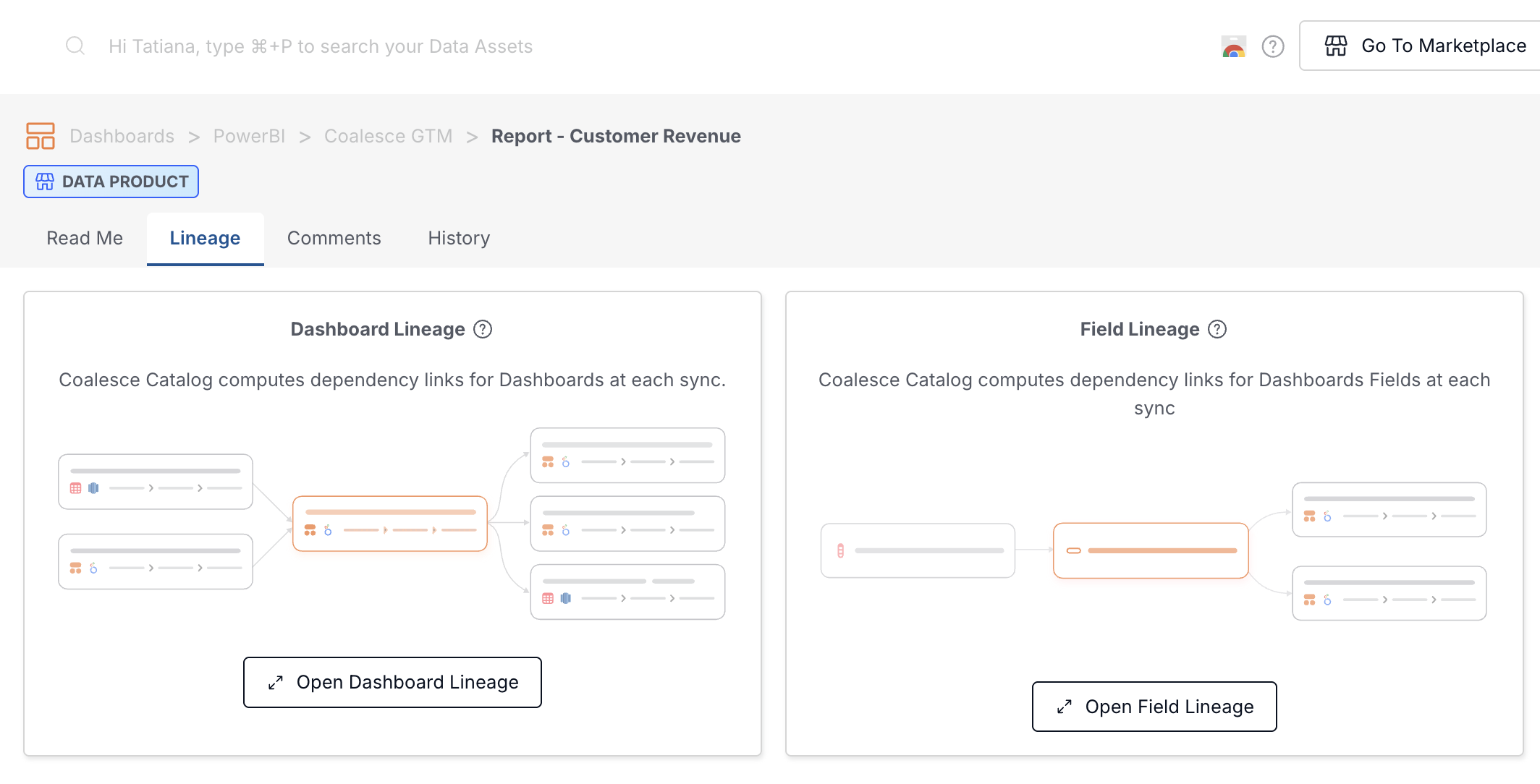
On a report or dashboard, Lineage shows preview cards for Dashboard Lineage and Field Lineage before you open the full graph. -
On a report or dashboard, choose Open Dashboard Lineage to inspect object-level dependencies in the lineage canvas. On a semantic data set, the canvas opens from the same Lineage tab without those preview cards. Use
+on the left to expand upstream sources and on the right to expand downstream usage, as described in Lineage. When mashup patterns resolve, upstream warehouse tables appear behind the semantic data set or report.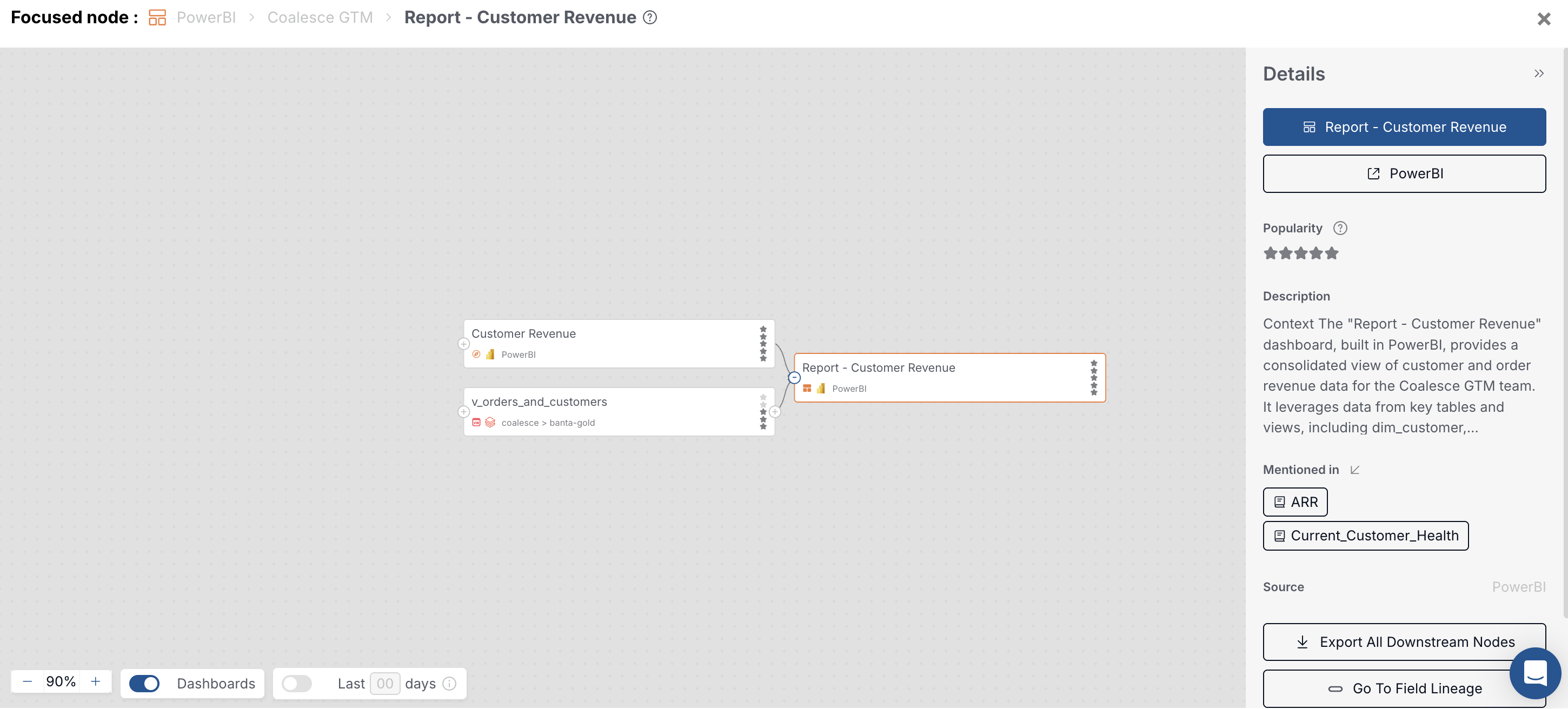
Dashboard lineage with the report focused; upstream nodes include the semantic data set and warehouse objects. -
Select a warehouse table or view in the graph, or open that warehouse asset and its lineage, when you want to confirm how Catalog links warehouse objects into Power BI. Downstream nodes show which semantic data sets and reports consume the warehouse object.
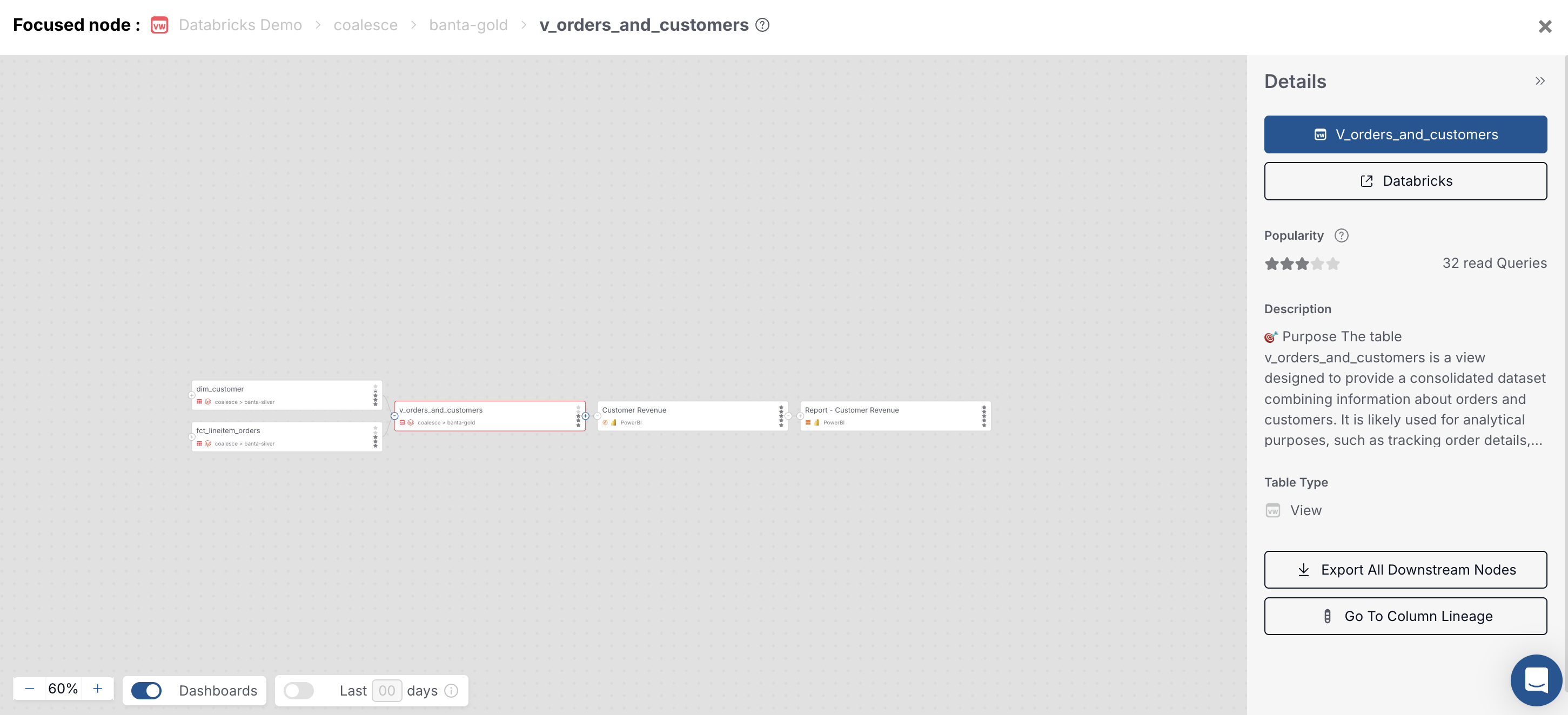
Warehouse view focused with downstream semantic data set and report. -
For column-level paths, return to the asset Lineage tab and choose Open Field Lineage, or from a warehouse column use Go To Column Lineage when that control is available. Field lineage depends on how clearly mashup text maps fields. Dataflow-backed paths show here when table-level links support column resolution.
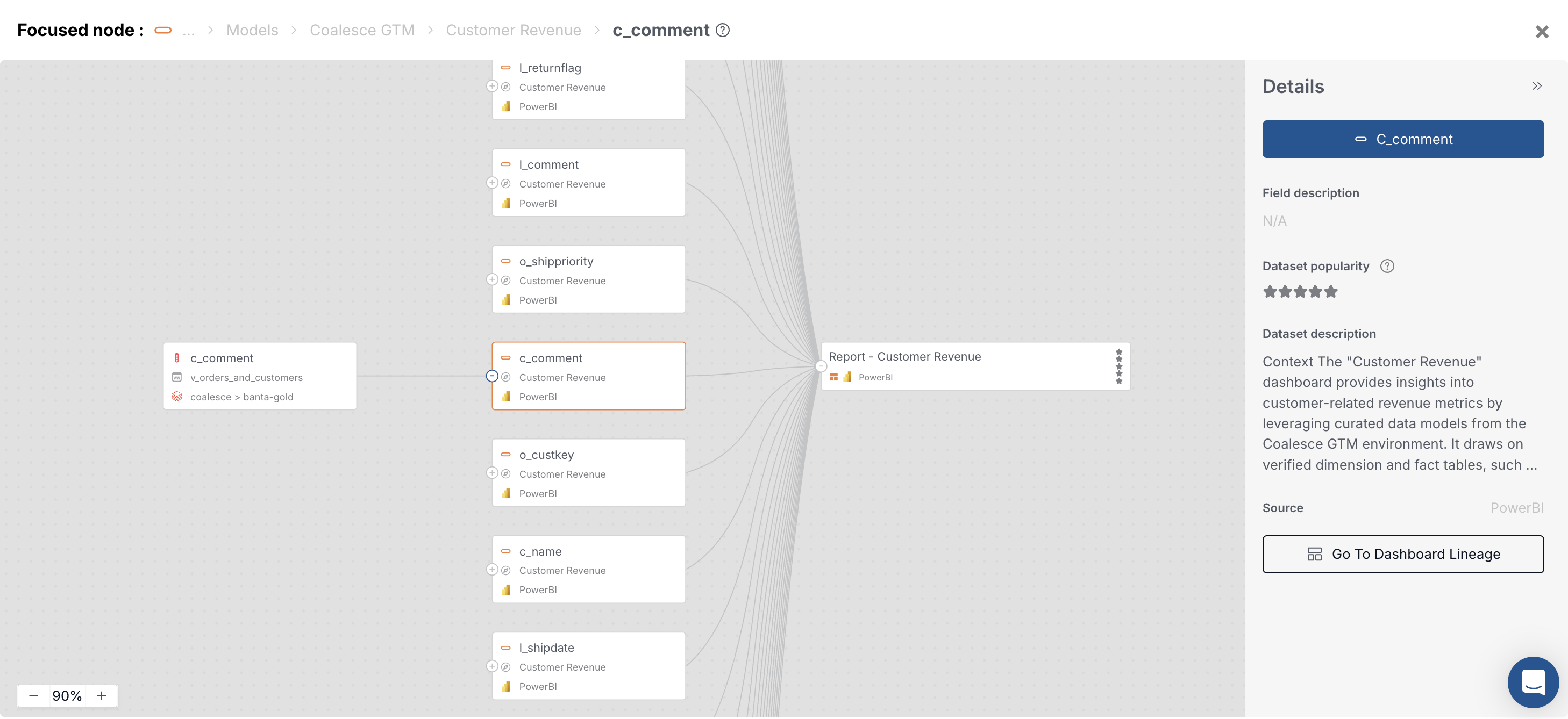
Field lineage for one column from the warehouse through the semantic data set into the report.
Every time your sources sync into Catalog, lineage is recomputed. The lineage graph uses data from the last 30 days; if you expect a recent change, adjust the time range under the graph if links look stale.
Supported Mashup Patterns and Limits
Catalog anchors Dataflow support on mashup text the Power BI admin APIs return and on pattern matching and heuristics against connector shapes Catalog tests. Catalog does not parse Power Query M. Treat the following as the supported surface for data set to Dataflow references:
- Recognized connector entry points - Mashup that navigates through
PowerBI.DataflowsorPowerPlatform.Dataflowswith recognizable Dataflow ID and entity values in the text. - Composite key - Catalog ties a reference to a flow and entity when both identifiers appear in a supported structure. If either is missing or the mashup shape does not match a tested pattern, lineage through that Dataflow does not resolve until the model's mashup matches a supported shape and Power BI exposes matching admin metadata.
Linked entities inside a Dataflow, where one entity is built on another, are part of supported modeling when mashup patterns expose those internal links during lineage computation.
Plan for the following limits:
- Limited pattern coverage - Arbitrary, parameterized, or highly dynamic mashup logic can stay unresolved even when the model is valid in Power BI.
- Table navigation versus embedded SQL - Semantic data sets built through the visual table picker in Power Query often export less explicit SQL than models where you embed SQL with
Value.NativeQuery. Warehouse lineage is strongest on the embedded SQL path. Table selection is sometimes required, for example for incremental refresh. See Lineage When Semantic Models Use Table Navigation Versus SQL in Power BI troubleshooting in Catalog. - Ambiguous or multi-source entities - When one entity resolves to multiple warehouse table paths in a way Catalog cannot reduce to a single path, column-level lineage can be incomplete even when table-level links exist.
- Dynamic or complex mashup - Parameters, indirection, or unusual connector shapes can weaken lineage until mashup text aligns with what extraction returns.
- Warehouse gaps - If the warehouse tables your Dataflow reads are not in Catalog, the graph stops where Catalog has no upstream object, regardless of Power BI extraction.
Fabric Dataflow behavior follows the same Power BI integration, admin API output, and mashup patterns described in Supported Mashup Patterns and Limits. Use those references when you design validations for Fabric-backed flows.
Performance and Freshness
Use this section to set expectations for how often Dataflow-backed metadata and lineage update in Catalog. Treat extraction duration, Microsoft API behavior, and lineage recomputation timing as driven by your integration schedules and successful sync outcomes rather than by fixed timing promises in this documentation.
For the first load, Catalog-managed Power BI ingestion can take up to 48 hours for the first sync, as described in Power BI setup. Treat any semantic data set or report as potentially missing upstream lineage until that first pass completes successfully.
For ongoing Power BI metadata, after the first sync, Catalog-managed environments follow the schedule you coordinate with Catalog operations. Client-managed environments follow the schedule you configure for castor-extract-powerbi and upload, as in Power BI setup. On the client-managed path after your trial, schedule extraction at your desired frequency, up to once per day, so Dashboard sections stay current, as described in Data visualization integrations.
For warehouse metadata, warehouse integrations typically sync once per day after the first sync, as described in the Catalog onboarding guide. Lineage through a Dataflow still requires warehouse tables and columns to exist in Catalog, so warehouse freshness and Power BI freshness both matter.
When models or admin settings change, use Power BI to refresh or republish affected data sets, then allow a full Catalog extraction cycle before you judge lineage. Power BI sometimes serves updated mashup and admin metadata shortly after your change, but Catalog only reflects it after the next successful extraction.
How to Validate Dataflow Lineage
Follow these steps when you want to confirm that lineage crosses a Dataflow path. Start from the semantic data set or report that consumes the Dataflow, not the Dataflow name in Catalog search.
-
Confirm Power BI admin settings
In the Power BI Admin portal, verify the same Admin API Settings called out in Power BI setup remain enabled for your Catalog service principal's security group. -
Refresh or republish affected data sets
Follow refresh and republish guidance for data sets in Power BI setup so lineage-related metadata is current in Power BI before the next Catalog extraction. -
Confirm the warehouse side is in Catalog
Open the warehouse integration documentation for your platform, such as Snowflake, and ensure the databases and objects your Dataflow reads are in scope for sync. If a data set still shows no upstream tables, add or extend the warehouse source that backs those tables, then let Catalog run another sync. -
Wait for the next scheduled extraction
Catalog-managed environments run on a schedule you coordinate with Catalog operations. Client-managed environments use your own schedule forcastor-extract-powerbiand upload. See Power BI setup.
If lineage for Dataflow-backed tables was empty in the past and prerequisites are fixed now, run through the same steps again and allow a full extraction cycle before you contact Coalesce Support.
Troubleshooting
For incomplete Dataflow-backed lineage, stale metadata after Admin API changes, unrecognized mashup patterns, and client-managed extraction issues, use Power BI troubleshooting in Catalog. That guide collects step-by-step checks in one place so this article stays focused on how Dataflows affect lineage computation in Catalog.
What's Next?
- Complete or review Power BI credentials and admin steps in Power BI setup.
- Resolve lineage, search, and extraction problems in Power BI troubleshooting in Catalog.
- Fix or understand field lineage after column renames in Troubleshoot Power BI Lineage When Columns Are Renamed.
- Review quick and advanced search behavior for visualization models in Catalog search.
- Connect and sync the warehouses your Dataflows read in Data warehouse integrations.
- Practice expanding upstream and downstream lineage in Lineage.