Documentation index: llms.txt. This page is also available as markdown: append .md to this URL or send Accept: text/markdown.
Deploy Using the Coalesce App
This guide walks you through a deployment in the Coalesce App using the Deploy Wizard.
Before Deployment
Confirm the target Environment is configured before you open the Deploy Wizard.
- Review the Deployment Overview to ensure you've configured your Environment.
Deployment Wizard
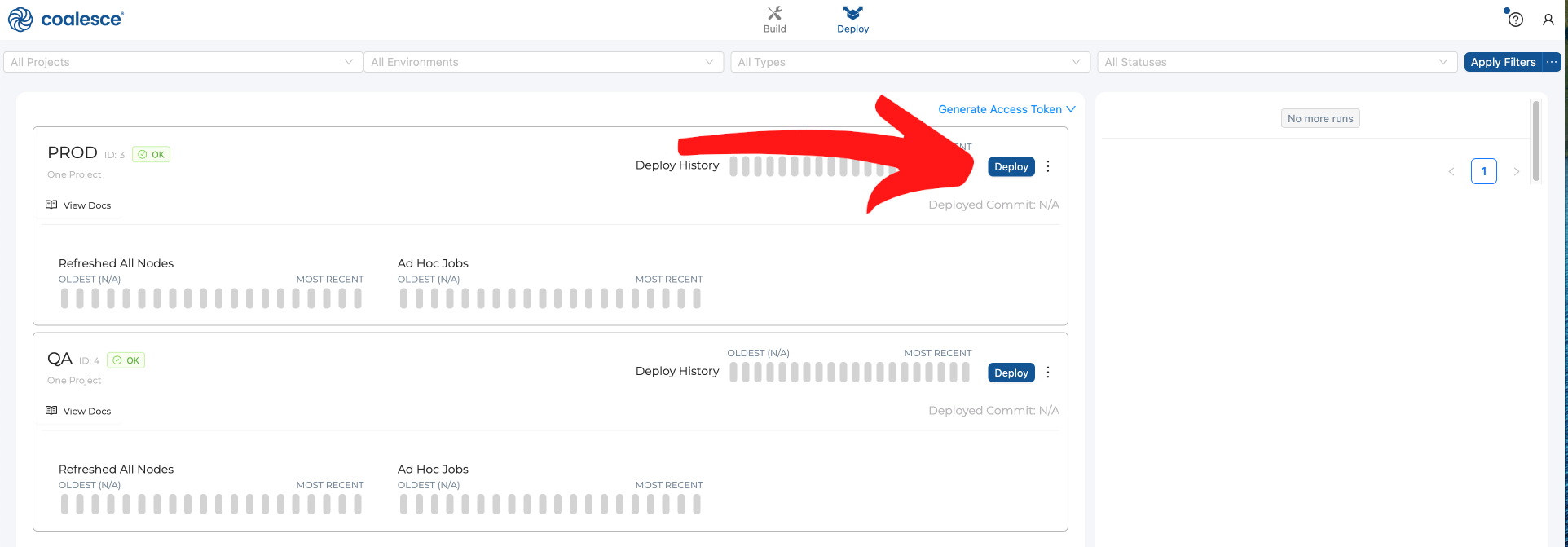
To deploy, click Deploy on the target Environment. You need Environment Admin on that Environment to start the wizard.
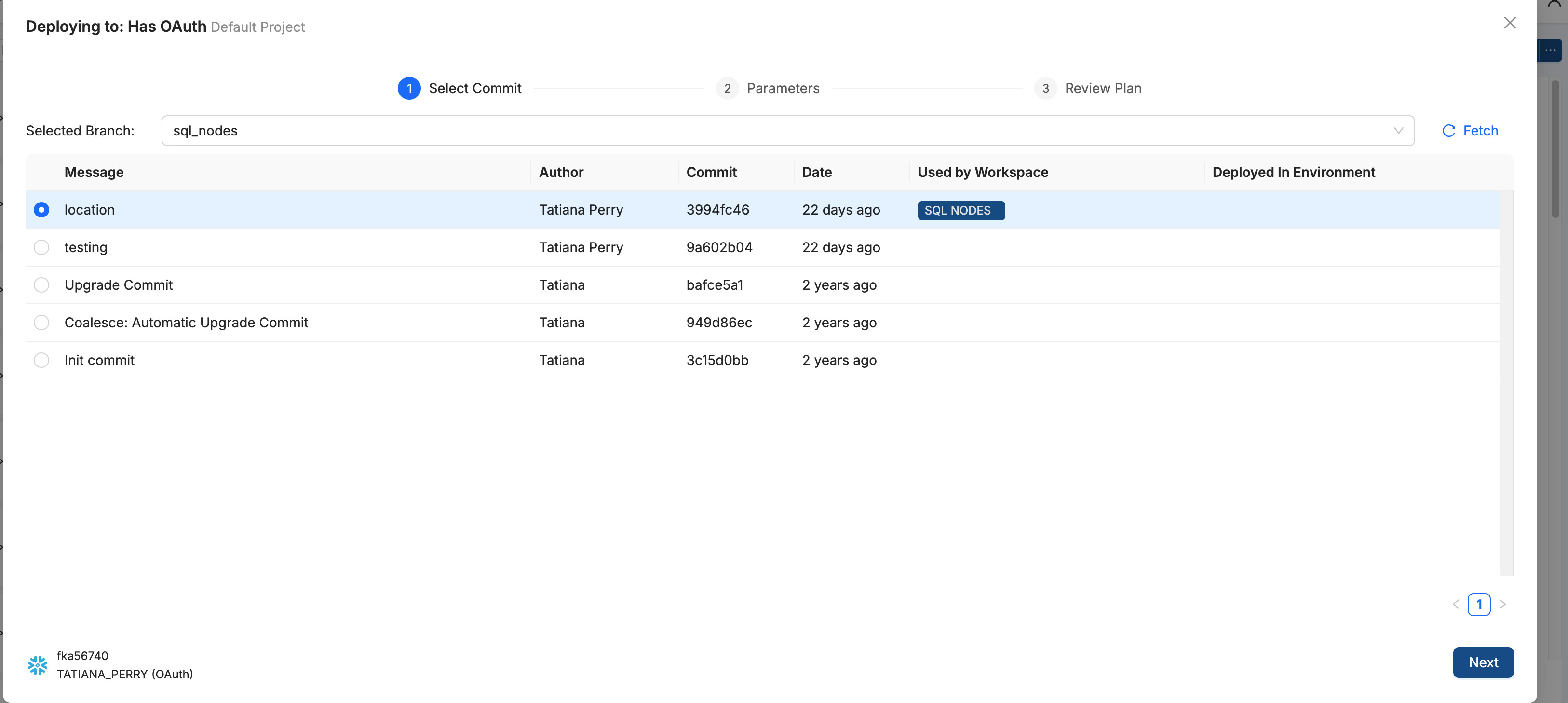
The wizard opens with a three-step progress indicator: Select Commit, Parameters, and Review Plan. A footer bar shows the data platform connection, signed-in user, and the branch and commit you selected as you move through the steps.
Select Commit
On Select Commit, choose the Git branch and commit to promote into the target Environment.
- Use Selected Branch to pick the branch that holds the metadata you want to deploy. Click Fetch if you need to pull the latest commits from the remote without changing your Workspace checkout.
- Select one commit from the table. Each row shows Message, Author, Commit, Date, Used by Workspace, and Deployed In Environment. For column definitions, see Git Branches.
- Click Next to continue to Parameters.
For branch discipline and which commit to pick for production-like Environments, see Deployment Overview.
Parameters
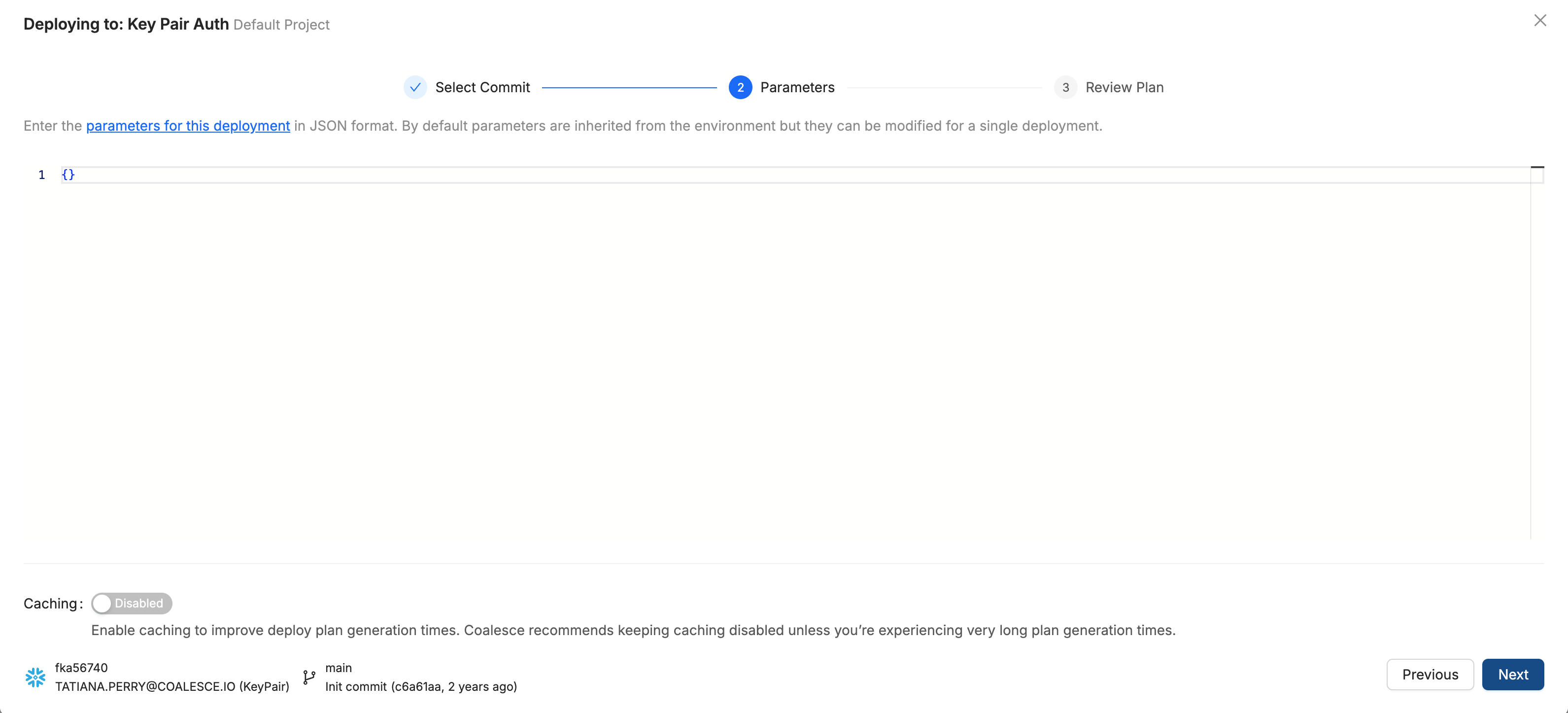
On Parameters, confirm or override runtime parameters and optional plan settings before Coalesce generates the deployment plan.
Parameters inherit from the Environment and can be overridden for this deploy only. Values overridden for a deploy are omitted from runTimeParameters in run results. See Overwriting at Deploy.
- Edit the JSON editor if you need deploy-time overrides. Environment defaults appear in the editor when they are set.
- Review optional toggles below the editor:
- Caching - Disabled by default. Enable only when plan generation is very slow. See Caching Deployment Plan.
- Click Next. Coalesce generates the deployment plan before Review Plan loads.
Review Plan
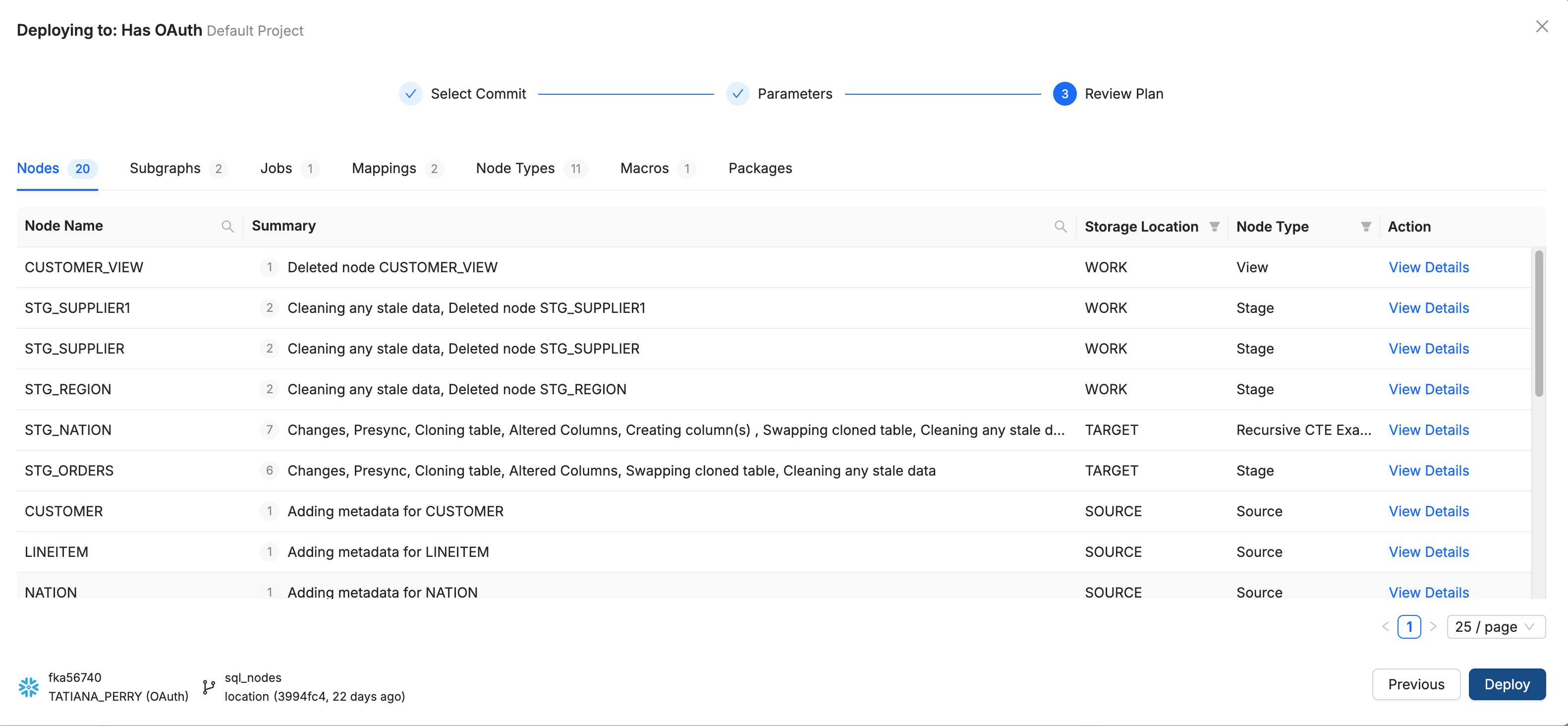
On Review Plan, inspect every object Coalesce will create, alter, or delete in the target Environment. Resolve errors and warnings before you click Deploy.
Plan Tabs
The plan groups changes by object type. Open the tab that matches what you need to verify:
- Nodes - Tables, views, stages, and other Node objects in your pipeline
- Subgraphs - Subgraph definitions included in the deploy
- Jobs - Job definitions that will be created or updated
- Mappings - Storage and source mapping changes
- Node Types - Installed or updated Node Type definitions
- Macros - Macro changes
- Packages - Package version or configuration updates
Plan Table
Each tab lists affected objects in a table. Column headers include Node Name or the equivalent name for that object type, plus Summary, Storage Location, Node Type, and View Details.
Use Summary for a quick read of what will happen, for example deleted Nodes, Presync cleanup, column alters, or metadata-only updates.
View Details
Click View Details on any row to open the full plan for that object.
- Stages and SQL - The ordered list of stages Coalesce will run and the generated DDL. Use this view to confirm destructive steps such as Replace Table, Create Table, or Drop Table. For Snowflake interpretation, see Snowflake Table Re-Creation During Deployment.
- Changes - On altered Nodes, the Changes tab shows property-level before and after values for DDL, metadata, source mapping, and other configuration. Use it to confirm metadata-only edits before you deploy.
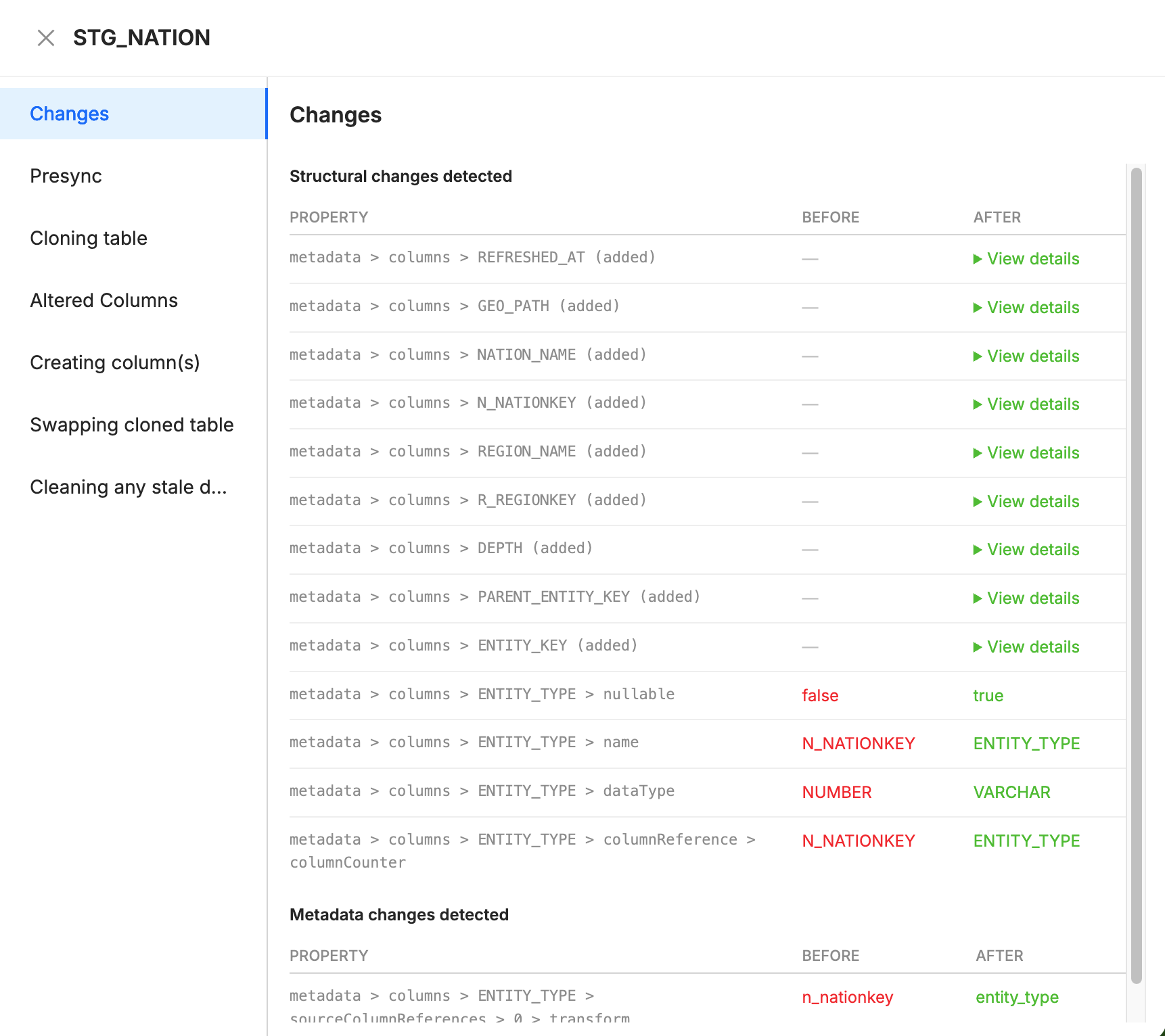
If the plan reports errors, for example missing Storage Mappings, fix the underlying configuration in the Coalesce App and regenerate the plan. Deploy stays disabled until blocking issues are resolved.
If the plan reports warnings about undefined parameter references, you can still continue. Fix the reference or parameter values, then regenerate the plan when you want a clean review. See Overwriting at Deploy.
Review the Deploy Status
After you click Deploy, track progress on The Deploy Page. Open the run from the Activity Feed to see per-Node stages, errors, and completion status.
You can also review results with the List Run Results API using the run ID shown on the run, or with the CLI by adding --out to a deploy command.